10 Jobber + Zapier Integrations to Save Hours of Work Every Week

As a service business owner, your days fill up fast. Between answering customer calls, sending quotes, and managing jobs, your to-do list never seems to end.
That’s where automated workflows can help. It cuts down on repetitive tasks, boosts productivity, and keeps your focus on the work that brings in revenue.
With Zapier, you can easily connect Jobber to your favorite tools, letting you track leads, update job details, and send follow-ups, without lifting a finger.
Here are 10 popular Jobber + Zapier integrations and Zap templates that can streamline your workflow and help you grow a more efficient home service business.
10 Popular Zapier + Jobber integrations to help you work smarter (+ template examples):
What is Zapier?
Zapier is a workflow automation platform that lets you connect the apps you use every day, even if they weren’t built to work together.
It runs on simple workflows called Zaps, which automate repetitive tasks across platforms like Jobber, Google Sheets, Slack, and more.
Each Zap has two key parts:
- Trigger: The event that start your Zap (e.g., a new client created in Jobber)
- Action: What Zapier does next in another app (e.g., create a contact in HubSpot)
Once you set up a Zap, it runs automatically, like a row of dominoes. One task gets done, and Zapier takes care of the rest, saving you effort and time.
Zapier is your source of truth for connecting the two [apps].
It essentially can connect almost any app that you’ve got on the internet. Whatever you want that one app to do, it will communicate with another app.

How Zapier works with Jobber
Zapier connects Jobber to 2,000+ other apps so your tools work better together without all the extra manual effort. You can automate everyday tasks while ensuring nothing falls through the cracks.
[Zapier] saves us a lot of time.
It’s designed to help alleviate a lot of the manual inputting of data entry. We use it a lot in our business. We’ve got hundreds of different automations between many different apps.
Here are a few powerful ways Zapier can work with Jobber:
- Capture new leads from forms or ads. When someone submits a Facebook Lead Ad form, Zapier automatically adds them to Jobber as a new client.
- Provide timely customer service. When a new client is added in Jobber, Zapier can send a personalized welcome email through Gmail.
- Keep your team and CRM in the loop. When you send a quote in Jobber, Zapier can update your CRM (like Pipedrive) and notify your team in Slack.
- Easily track completed jobs. After sending an invoice in Jobber, Zapier can log the details in Google Sheets for accurate records.
- Request customer feedback after each job. When a job is marked complete in Jobber, Zapier can send a feedback survey through SurveyMonkey.
How we chose the best Jobber + Zapier integrations
Our roundup is based on the most requested Zapier integrations from Jobber users looking to save time, reduce admin work, and keep their business running smoothly.
These popular automations will help you:
- Manage new leads and existing clients
- Communicate with your team and keep everyone on track
- Streamline your sales process and close deals
- Run better marketing campaigns
- Stay on top of tasks and job details
- Log key business data and trends
Whether you’re trying to keep your crew organized or get a bit of breathing room in your day, here are popular integrations Jobber pros use, plus Zap templates to get started.
1. HubSpot: Track leads and manage customer relationships
HubSpot is a CRM, marketing, and sales tool that helps home service businesses track leads, send marketing emails, and manage clients.
With a Jobber and HubSpot integration using Zapier, you can:
- Connect HubSpot and Jobber to automatically share new lead details, keeping contact data accurate and up to date in both systems.
- Trigger marketing workflows in HubSpot based on activity in Jobber (e.g., sending a follow-up email when a job is marked complete).
HubSpot and Jobber Zap templates
Connect clients and leads:
- Create Jobber clients from new HubSpot contacts
- Add new Jobber clients to HubSpot as contacts
- Create Jobber clients from new HubSpot contacts in lists
- Create new HubSpot contacts from Jobber requests
- Create Jobber requests for newly added HubSpot contacts
Track quotes and invoices:
- Create new HubSpot deals from new Jobber quotes
Manage job details and updates:
- Create HubSpot deals from new Jobber requests
- Create new HubSpot deals when new jobs are created in Jobber
2. monday.com: Stay on top of jobs, tasks, and schedules
monday.com is a work management platform that helps service businesses organize tasks, track job progress, and manage team schedules.
When monday.com is connected to Jobber, it’s useful for business owners who want to:
- Manage complex tasks tied to large jobs (e.g., construction or contractor work).
- Connect data between Jobber and monday.com so job details and updates flow both ways.
- Automatically track lead status and client info without jumping between tools.
monday.com and Jobber Zap templates
Manage job details and updates:
- Create new items in monday.com whenever job completions occur in Jobber
Track quotes and invoices:
- Create new monday.com items from new Jobber quotes
- Create monday.com items from new Jobber quote approvals
- Update multiple columns in monday.com when new quote approvals happen in Jobber
- Create new items in monday.com from new invoices in Jobber
Connect clients and leads:
- Create items in monday.com for new clients in Jobber
- Create new items in monday.com for every new request in Jobber
- Create clients in Jobber for every new item in board on monday.com
3. Slack: Get real-time job updates and alerts
Slack is a team messaging tool that helps service businesses share updates, alerts, and files, keeping everyone on the same page.
Popular use cases when connecting Jobber to Slack include:
- Sending a Slack message when a new work request comes in
- Notifying your team when a quote is approved
- Posting an update in Slack when a job is scheduled
Slack and Jobber Zap templates
Manage job details and updates:
- Send new Jobber requests as channel messages in Slack
- Send channel messages in Slack for new quote approvals in Jobber
- Send Slack direct messages for new quote approvals in Jobber
- Add a reminder on Slack when a new Jobber quote is created
- Get notified on Slack when a new quotes in Jobber has been created
- Send private Slack messages for new Jobber invoices
4. Pipedrive: Keep your sales pipeline moving
Pipedrive is a CRM and sales tool for home service business owners to track leads, manage follow-ups, and move deals forward.
When Pipedrive is connected to Jobber using Zapier, you can:
- Automatically connect new leads between Pipedrive and Jobber, so contact info stays accurate and up to date in both systems.
- Trigger marketing workflows in Pipedrive based on activity in Jobber (e.g., sending a follow-up email when a quote is sent).
Pipedrive and Jobber Zap templates
Connect clients and leads:
- Add new Jobber clients to Pipedrive as people
- Create new Pipedrive deals from new Jobber clients
- Add new Pipedrive people to Jobber clients list
- Create Jobber clients from new Pipedrive organizations effortlessly
- Create Jobber clients from new Pipedrive leads for seamless lead management
- Create Jobber clients from new Pipedrive activities
- Create new Jobber clients from matching Pipedrive deals effortlessly
Manage job details and updates:
- Create new Pipedrive deals from new Jobber requests
5. Constant Contact: Always stay in touch with your clients
Constant Contact offers email and SMS marketing solutions that businesses use to stay connected with new, old, and repeat clients through newsletters, promotions, and job updates.
Constant Contact can be connected to Jobber with Zapier, allowing you to:
- Automatically connect client info from Jobber into Constant Contact to keep your contact list up to date
- Trigger SMS or email marketing workflows based on activity in Jobber (e.g., sending a feedback survey when a job is marked complete).
Constant Contact and Jobber Zap templates
Connect clients and leads:
- Create new Constant Contact contacts from new Jobber clients
- Create contacts in Constant Contact for new quote approvals in Jobber
- Create new Constant Contact contacts from new Jobber invoices
- Create new Constant Contact contacts from completed Jobber jobs
I’m a huge fan of Zapier.
It saves me so much time, and it also saves me so much headache, frustration, and grinding my teeth.

6. Jotform: Turn online forms into new work
Home service businesses use Jotform to build custom forms to collect leads, service requests, job details, or client information.
Service providers connect Jotform with Jobber to:
- Capture new leads and service requests through forms for estimates and job bookings
- Automatically create new clients
- Automatically connect client info from Jotform into Jobber to keep your contact list up to date
Jotform and Jobber Zap templates
Manage job details and updates:
- Create new Jobber requests from new Jotform submissions
- Assign new Jobber job completions to Jotform forms
- Assign prefilled forms in Jotform when new quote approvals happen in Jobber
Connect clients and leads:
- Create new Jobber clients from new Jotform submissions
- Create new Jobber clients from new signed documents in Jotform
7. Trello: Organize and track jobs across different stages
Trello is a project management platform that helps home service businesses organize their work across boards, lists, and calendars.
Here’s how service pros use Trello with Jobber:
- Track job progress from quote to completion with Trello while connecting with Jobber activity.
- Automatically create Trello cards when new jobs are added in Jobber.
- Post updates to Trello when jobs are scheduled, updated, or completed in Jobber.
Trello and Jobber Zap templates
Manage job details and updates:
- Create Trello cards for new Jobber quote approvals
- Create Trello cards for new jobs in Jobber
- Create Trello cards from new Jobber requests for easy task management
- Create Trello cards for new Jobber quotes to effortlessly track and manage them
- Create Trello cards for new Jobber invoices
- Create Trello cards instantly when new quotes are sent in Jobber
- Close jobs in Jobber and move cards to a list in Trello
- Create Trello cards from new Jobber requests
8. Asana: Turn (big) jobs into simple, trackable tasks
Like Trello, Asana is a project and task management tool that lets business owners break down jobs into smaller, manageable steps—ideal for larger, more complex jobs (e.g., construction and contracting projects).
Integrating Asana with Jobber is popular with business owners who want to:
- Manage complex job tasks more easily, especially for complex projects.
- Create custom triggers to connect service requests, job updates, and tasks Jobber between and Asana automatically
Asana and Jobber Zap templates
Manage job details and updates:
- Create Asana tasks from new Jobber requests
- Generate new Asana tasks from new Jobber requests
- Create tasks in Asana for new quotes in Jobber
- Create tasks in Asana for new quote approvals in Jobber
- Turn new Jobber requests into tasks in Asana
Connect clients and leads:
- Create new tasks in Asana when new clients are added in Jobber
- Create Asana sections for new Jobber clients
- Generate projects in Asana from templates with every new client in Jobber
9. Facebook Lead Ads: Turn social leads into new clients
Facebook Lead Ads let home service businesses collect contact information from potential clients directly within Facebook and Instagram.
Service business owners connect Facebook Lead Ads with Jobber to:
- Automatically send new leads from Facebook or Instagram straight into Jobber as new clients.
- Connect work requests from Facebook Leads Ads to Jobber, so you’re ready to follow up without delays.
Facebook Lead Ads and Jobber Zap templates
Connect clients and leads:
- Create new Jobber requests from Facebook Lead Ads leads
- Create new clients in Jobber from new leads in Facebook Lead Ads
- Create Jobber clients from new leads in Facebook Lead Ads
10. Google Sheets: Turn data into reports, charts, and insights
Google Sheets is a spreadsheet tool (like Microsoft Excel) that home service businesses use to track jobs, quotes, payments, and other important data.
Here’s how service pros put Jobber and Google Sheets to use:
- Automatically send Jobber data (e.g., new jobs, quotes, or invoices) into Google Sheets for easy tracking.
- Create custom reports or charts to spot trends, measure performance, and make informed business decisions.
Google Sheets and Jobber Zap templates
Manage job details and updates:
- Add new Jobber job completions to Google Sheets as rows
Connect clients and leads:
- Add Jobber clients to Google Sheets rows
- Create Jobber clients from new Google Sheets rows
Track quotes and invoices:
- Add new Jobber invoices to a Google Sheets spreadsheet
- Create rows in Google Sheets for new quote approvals in Jobber
- Create Google Sheets rows for new Jobber quote approvals
- Create Google Sheets rows for new Jobber quotes
- Update Google Sheets rows when new Jobber invoices are created
Most people wouldn’t do that manually. It’s just too much work.
If you wanted to have all your leads in a spreadsheet or something, you could have a Zap that as soon as it became a lead in Jobber, it also adds it in as a row in the sheet. So at the end of the month, you have all your leads in a very tight spot. That all happens automatically.
How to get started with Jobber and Zapier
Feeling inspired to use Zapier to connect Jobber with the tools that keep your business running strong? Here’s how to get started.
Use Zapier to create automations in your business that can eliminate human error and just human labor in the first place.
How to connect Jobber to Zapier
- Log in to your Zapier account, or create a new account.
- From the Home page, navigate to Apps from the top menu bar.
- Click on + Add Connection and search for Jobber.
- Use your credentials to connect Jobber to Zapier.
- Once that’s done you can start creating an automation.
How to create a Zap
Below, we walk through setting up a Zap, using an example that sends new quotes to a Google Sheet. You can follow the same steps to build any two-step Zap that fits your workflow.
Use our Zap template ideas to get started or create your own with the Zap Editor.
1. Log in to your Zapier account and click Create Zap.
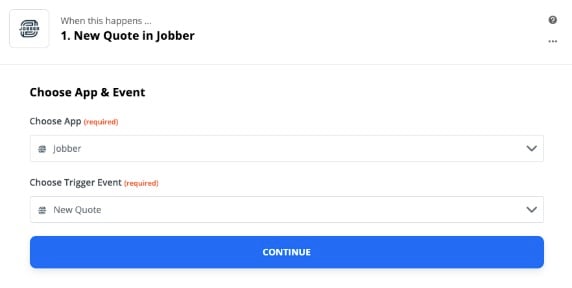
2. Choose Jobber as your app and your Trigger (in this case, it’s “New Quote”). Let Zapier find some test data and wait for the green checkmark to continue.
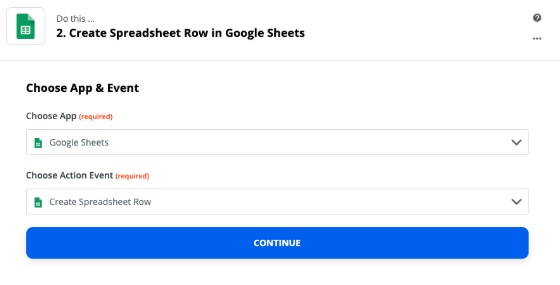
3. Choose your Action which is the next step that happens after the trigger (choose Google Sheets and ‘Create Spreadsheet Row’).
4. Customize your action by selecting what data gets sent and how it’s used in the other app (locate your Google Sheets file and map columns to the data from Jobber).
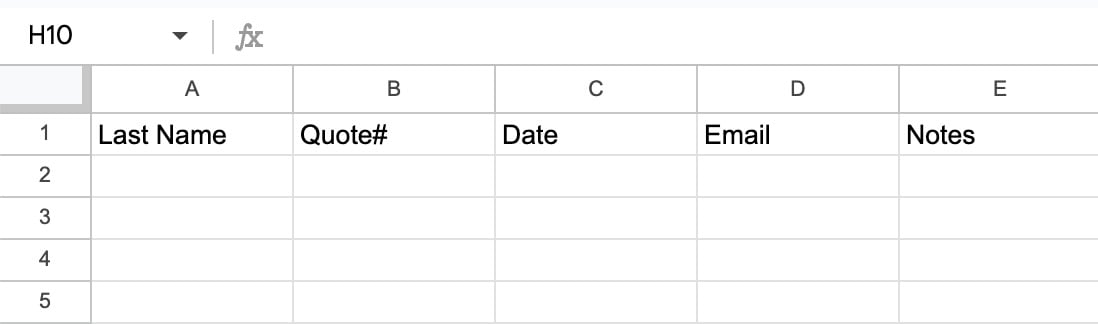
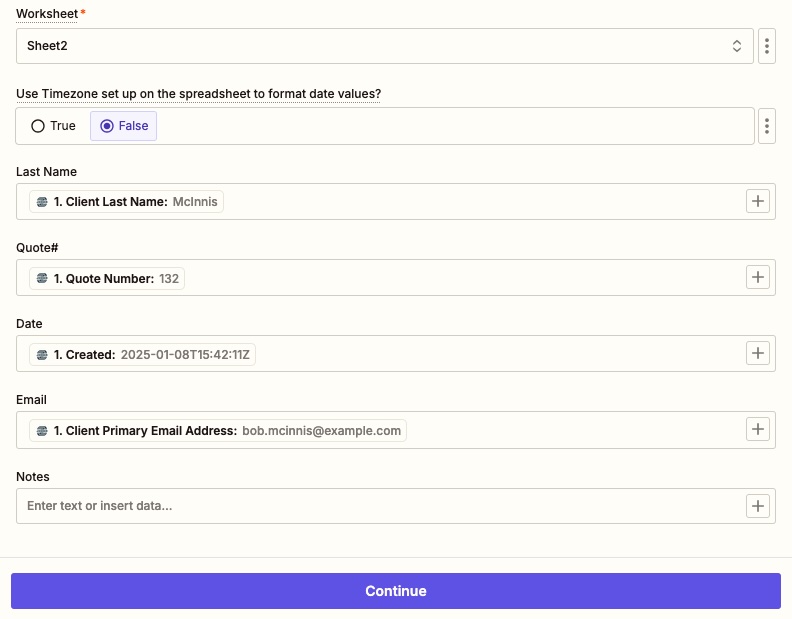
5. Test your Zap with Zapier to make sure it works. If everything looks right, turn it on and you’re ready to go.
Automations aren’t just for big home service businesses. They’re how smart businesses like yours can create time-saving workflows, save money, and remain competitive.
Still curious about using Zapier to streamline your business operations? Hear from real service pros using Zapier and other AI productivity tools to stay a step ahead.