
Key takeaways:
Connecting Jobber to ChatGPT and Claude through the Jobber MCP makes it easy for home service businesses to access and act on their business data using AI, saving time on admin tasks.
- Seamless AI integration. Jobber MCP connects your Jobber account with ChatGPT and Claude, allowing your AI assistant to find information, draft quotes, and manage clients directly from these tools without switching platforms.
- Fast setup for owners and admins. All you need is a Jobber account (Core plan or higher) and either a ChatGPT or Claude account. Owners and admins can connect in just a few steps using the Jobber App Marketplace.
- Streamline key tasks. Use AI to plan your day, track payments, follow up on quotes, turn emails into client requests, and start quote drafts, all while keeping you in control of the information customers can see.
- Clear boundaries and user control. While AI can prepare drafts and pull details, only you can finalize changes, send quotes, or modify jobs. Nothing happens without your review.
- Free and flexible. The Jobber MCP is free to use, available during trials, and works with free AI plans, making advanced automation accessible for any business.
Want more ways to streamline your business and get the latest tips? Sign up for the Jobber Newsletter.
More home service businesses now lean on ChatGPT and Claude for everyday work, from writing customer emails to planning jobs. In fact, 52% of home service business owners already use AI in their day-to-day operations.
But when these tools can’t access your business data, you still have to fill in the gaps. That means looking up job details, explaining the context, and copying results back into your software—adding admin to the tasks you wanted AI to take off your plate.
The Jobber MCP connects your business data to ChatGPT and Claude, so you can get answers, find what needs attention, and take action without switching between tools. Here’s how it works and how to get started.
What is the Jobber MCP?
The Jobber MCP lets ChatGPT and Claude work with your Jobber account. Jobber’s AI connectors let you access your business data and take action directly from ChatGPT and Claude.
Powered by the Model Context Protocol (MCP), these integrations connect your AI assistant to Jobber, so you can get more done without switching between tools.
You can access the Jobber Connector for Claude and the Jobber Plugin for ChatGPT in the App Marketplace with our other Jobber integrations.
What is Model Context Protocol (MCP)?
Model Context Protocol (MCP) is the technology that allows AI assistants like ChatGPT and Claude to connect with external tools and data sources. Jobber uses MCP to power its AI connectors, giving you access to your business information directly from your AI assistant.
With the Jobber MCP, ChatGPT or Claude can work with your Jobber account after you sign in and approve access.
Who can use it?
Owners and admins on a can connect the Jobber MCP. To get started, you need:
- A Jobber account on a Core plan or higher
- Owner or admin access, since only owners and admins can connect it
- A ChatGPT or Claude account (free plans for both work)
It’s free to connect, and it’s available during your free trial.
What you can do with Jobber in ChatGPT and Claude
Once you connect Jobber, your AI assistant can look up information, create and edit clients, properties, and requests, and draft quotes.
Here’s what each action covers, with a sample prompt to try and a clear view of what isn’t supported.
| What you can do | What it works with in Jobber | Example prompt |
|---|---|---|
| Look up and search | Clients, properties, requests, quotes, jobs, invoices, visits, schedule | “Which invoices are still outstanding?” |
| Create and edit | Clients, properties, requests | “Create a new client and request in Jobber from this email.” |
| Create a draft | Quotes | “Can you create a quote for this customer?” |
| What you can’t do | Create or edit jobs and invoices, change the schedule, delete or archive, send anything to customers, payments | The Claude Connector and ChatGPT Plugin prepare work for you to review, and you make the final call in Jobber. You stay in control so nothing goes out without your review. |
These capabilities help you get everyday admin out of the way so you can spend more time serving customers and running your business.
What you can’t do
The Claude Connector and ChatGPT Plugin prepare work for you to review, and you make the final call in Jobber. You can’t create or edit jobs and invoices, change the schedule, delete or archive, send anything to customers, payments.
You stay in control so nothing goes out without your review.
5 ways service pros use the Jobber MCP
These are the most common ways service pros use the Jobber MCP today, based on Jobber usage data. Each one includes a prompt you can copy into ChatGPT or Claude.
1. Plan your day
Start the day knowing what’s ahead without opening Jobber and scrolling through visits. Your assistant pulls your schedule and gives you a quick rundown of your upcoming visits and scheduled jobs, so you know what’s ahead and where your attention is needed.
Examples prompts:
- “What’s my schedule looking like today?”
- “Give me my morning briefing.”
2. Stay on top of payments
See who still owes you without searching through your invoice list. Your assistant pulls your outstanding invoices from Jobber, so you can follow up with those clients sooner and keep payments moving.
Example prompt:
“Which invoices are still outstanding?”
3. Follow up on quotes
See which quotes are still waiting for approval, so you know who to follow up with and can keep potential jobs moving forward.
Your assistant lists the quotes still waiting on approval, so you know exactly who to follow up with while the job is still fresh in their minds.
Example prompt:
“Which quotes haven’t been approved yet?”
4. Turn emails into requests
Stop retyping customer details from your inbox into Jobber. Your assistant turns an email or work order into a client and request, and it can clean up and add a whole client list too, so new work gets into Jobber faster.
Example prompts:
- “Can you create a new client and request in Jobber from this email?”
- “Here is my client list. Clean it up and add each client to Jobber. Flag any row that’s missing a name, and don’t guess at missing contact details.”
5. Draft quotes
Get a head start on every quote instead of building each one from scratch. Your assistant drafts the quote in Jobber, and you review it and send it yourself, so you save time and stay in control of what goes to your customer.
Example prompt:
“Can you create a quote for this customer?”
How to connect Jobber to ChatGPT or Claude
If you’re a Jobber account owner or admin, you can connect your account to ChatGPT or Claude in just a few minutes. Start in the Jobber App Marketplace, select your AI assistant, and follow the prompts to sign in and approve access.
Connect Jobber to ChatGPT
Here’s how to set up the Jobber ChatGPT integration:
1. Go to the App Marketplace in Jobber and find the ChatGPT Plugin.
2. Click Learn More to land in the ChatGPT plugin directory.
3. Choose Connect next to Jobber.
4. Log in to Jobber if asked, then allow ChatGPT to access your account.
5. On the plugin page, pick the tools you want ChatGPT to use. For example, email tools like Quo can work alongside Jobber in ChatGPT. Connect them, and a customer email or call transcript can become a new client and request in Jobber, ready for your review.
Connect Jobber to Claude
Here’s how to set up the Jobber Claude integration:
1. In Jobber, open the App Marketplace and select the Claude Connector.
2. Select Learn More to open the Claude connector directory.
3. Select Connect on the Jobber connector.
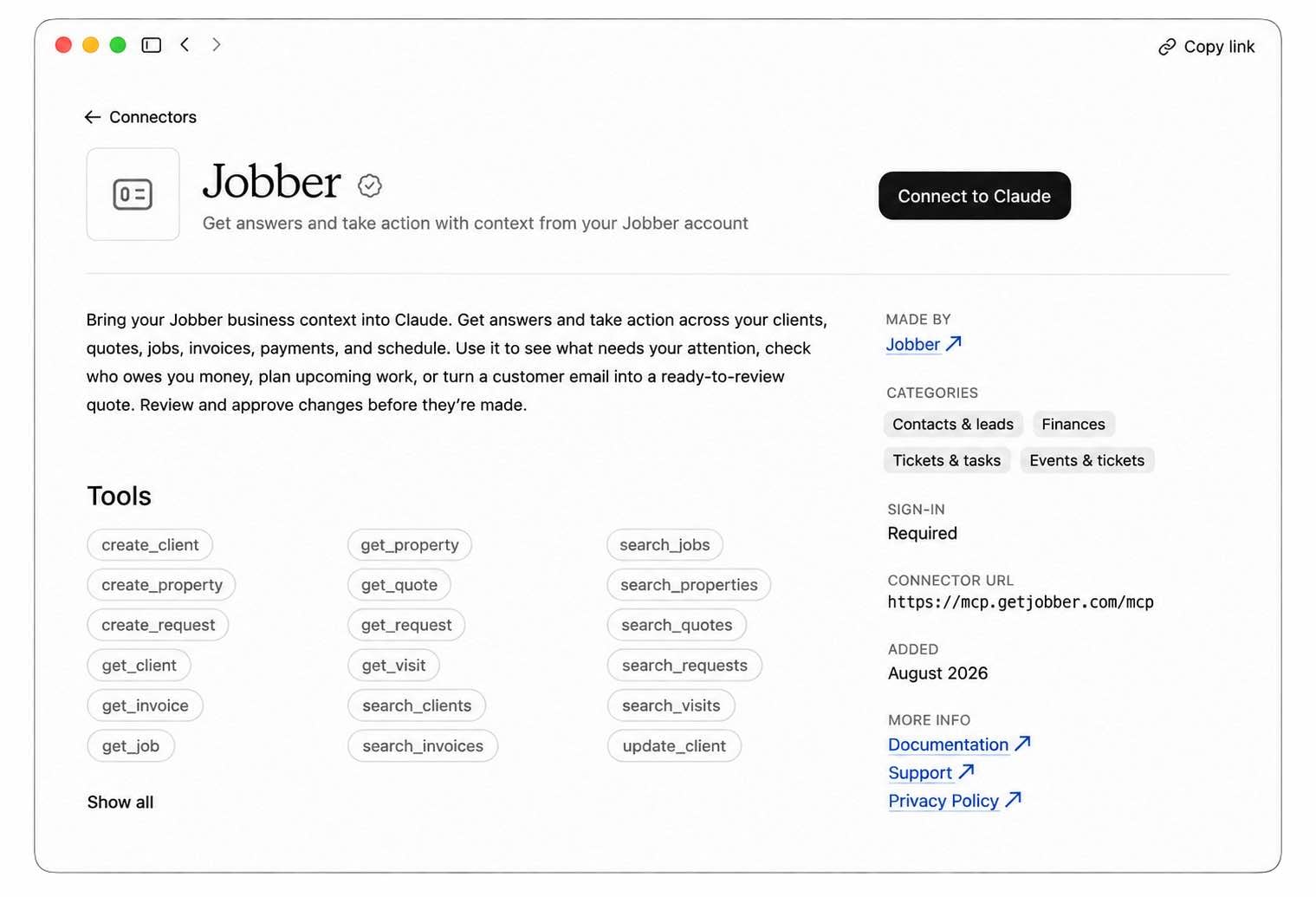
4. Sign in to Jobber if prompted, then select Allow Access.
5. On the customization page, choose which tools Claude can use. Store your pricing rules, standard procedures, and preferred tone in a Project, and Claude can draft quotes and customer replies in your style, ready for your review.
Frequently Asked Questions
-
Yes. Jobber offers its own Jobber MCP server, available as the Jobber Connector for Claude and the Jobber Plugin for ChatGPT. You can add either one from the App Marketplace.
-
Yes, it’s free to connect. You need to be on a Core plan or higher and have a ChatGPT or Claude account. Free ChatGPT and Claude plans work.
-
Yes. Free ChatGPT and Claude plans both work with the Jobber MCP, so you don’t need a paid subscription to connect.
-
Yes. The Jobber MCP is available during your Jobber free trial, so you can connect ChatGPT or Claude and try it before you choose a plan.
-
Only owners and admins can connect the Jobber MCP. If you’re another user on the account, ask an owner or admin to set it up.
-
No. Your assistant can look up your schedule and draft quotes, but it can’t change appointments, send anything to customers, take payments, or delete or archive records. You review and send quote drafts from Jobber, so you stay in control of what reaches your customers.
-
No. Jobber blocks browser agents from signing in, so use the Claude Connector or ChatGPT Plugin instead. With the connector, you sign in to Jobber yourself, approve access, and choose which tools your assistant can use.
-
Jobber AI works inside Jobber, while the Jobber MCP brings Jobber into the AI tools you already use, like ChatGPT and Claude. You can use them side by side. To see what Jobber AI offers inside the app, read about Jobber AI Voice and Chat.