Free Construction Invoice Template
Skip building invoices from scratch after a long day on the job site. Jobber’s free construction invoice template generator helps you add client details, labor, materials, and change orders, then fills in totals and payment terms. Take back your time and spend it growing your business instead.

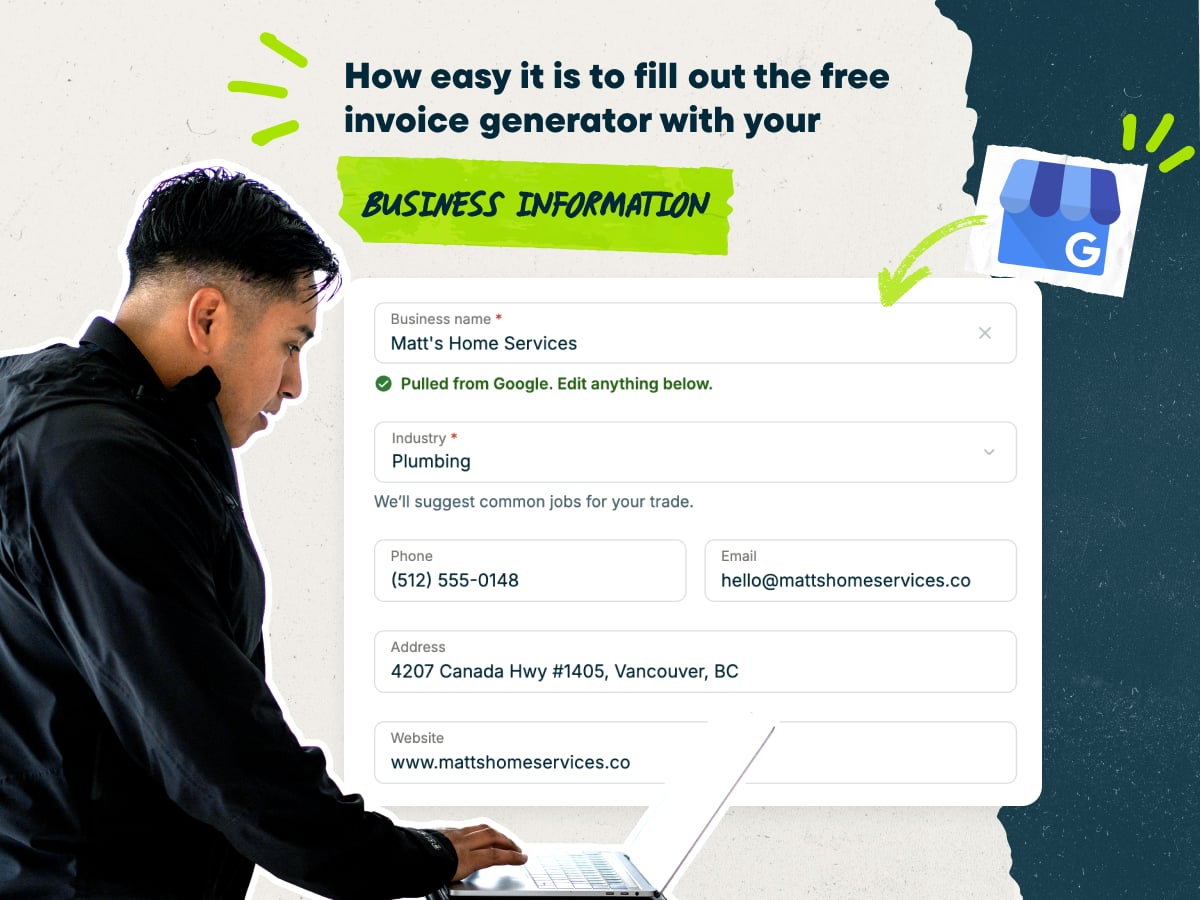
Create a construction invoice fast with our free invoice template generator
- Enter your business name and the generator will auto-fill your business details. Include your license number if your state requires it
- Choose pre-loaded line items or write custom ones for demo, framing, materials, and change orders
- Add your client’s name, billing address, and job site address
- Download your invoice as a PDF, or save it in Jobber to send and track it later
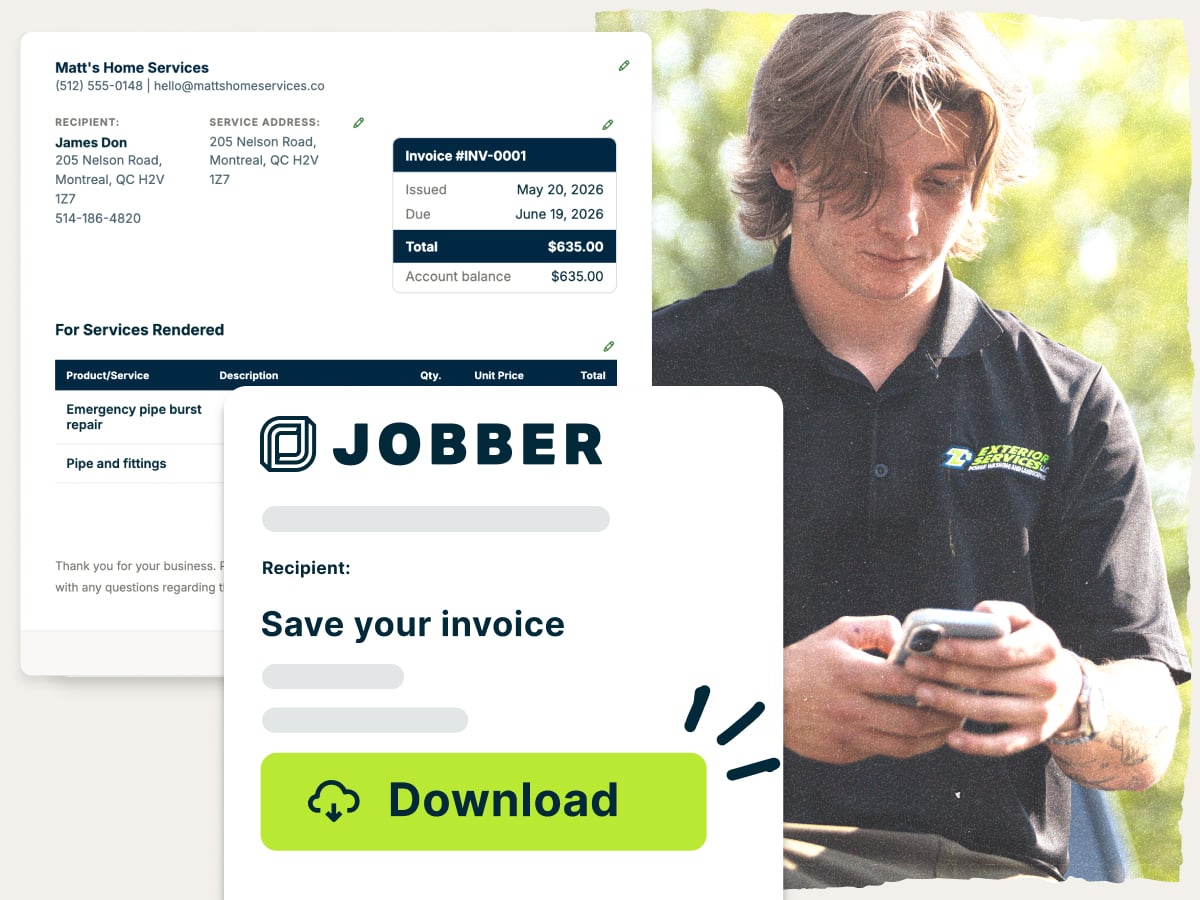
Why use Jobber’s free construction invoice template?
- Ready to customize: Change line items, rates, and payment terms to match each job. Use the same template for a one-day demo or a full framing package
- Set up with the essentials: The template has room for your invoice number, dates, line items, deposits, and payment terms. Add change orders as their own lines so clients see what changed
- Free to download: Save your construction invoice as a PDF at no cost. Send it to your client the same day you wrap the job or reach a milestone
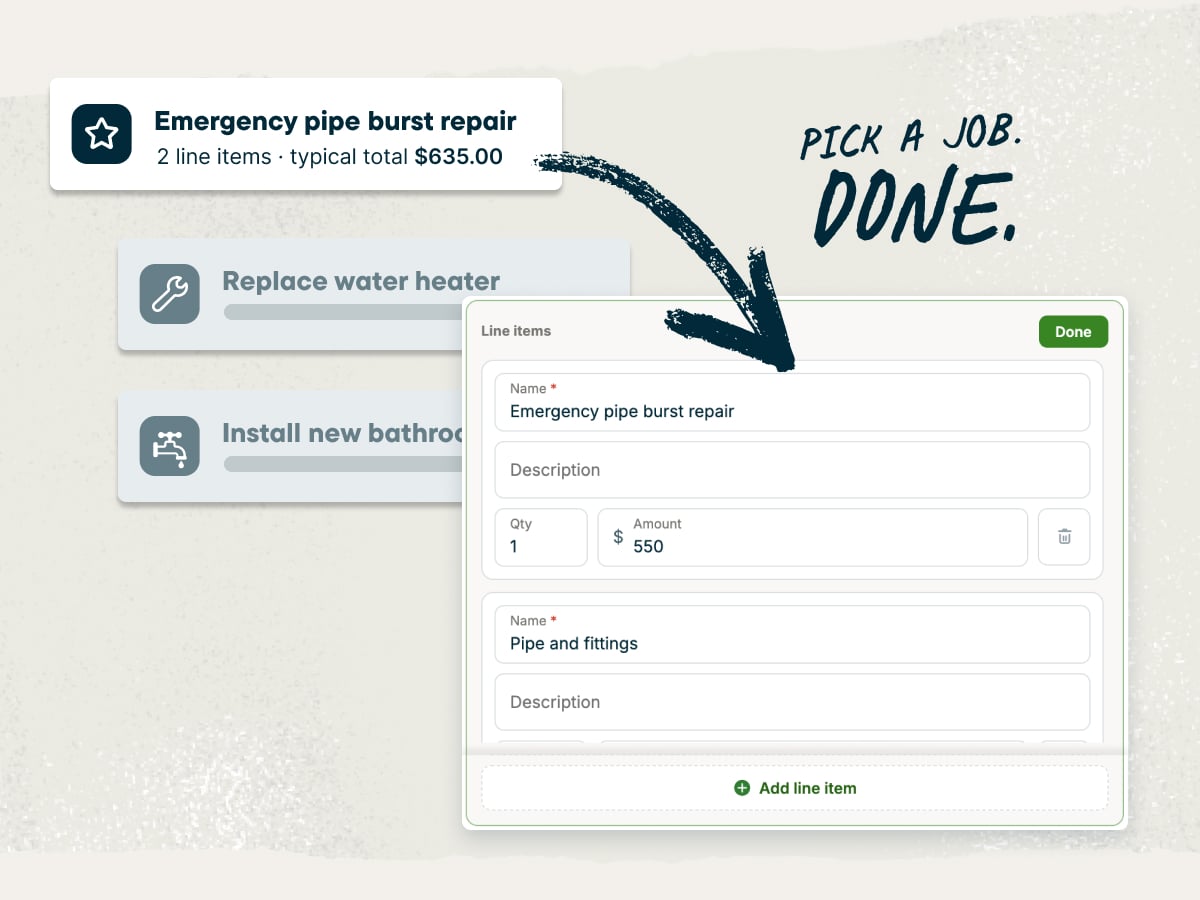
An invoice template built for construction businesses
Most invoice templates are built for selling products or simple services. Construction is more complex—jobs run for weeks, change mid-project, and involve crews, subcontractors, and suppliers. This construction invoice template has you covered with room for labor hours, materials, permits, dumpster rental, and change orders, plus a line to credit deposits.
Explore more Jobber free tools for your construction business
Use these free tools to get the rest of your paperwork and pricing sorted:
Over 400,000 home service pros in 50+ industries trust Jobber
“Using Jobber, I can take card onsite through tap, I can take ACH, I can send the invoice within minutes of finishing the job.”
How to create a construction invoice
You can create a construction invoice in Microsoft Word, Google Docs, Microsoft Excel, or Google Sheets. But since these tools aren’t designed for invoicing, you’ll need to spend time setting up templates with the necessary math and formatting.
Use the construction invoice template generator instead. It handles the layout and totals, so you only have to fill in the job details and line items, then download a PDF to send to the client.
Whichever tool you use, these tips help you write an invoice your client can approve and pay with fewer questions:
- Match the invoice to your contract or estimate. Use the same scope, line items, and pricing your client approved. Matching numbers mean fewer calls asking what a charge is for.
- Choose your billing method. Decide up front whether you’re billing a fixed price, time and materials, cost-plus, or progress payments. Your method shapes which line items you list.
- List change orders separately. Give each change order its own line with its number and approved price. Attach the signed change order so your client sees what they agreed to.
- Credit deposits and previous payments. Subtract any deposit or earlier draw from the total. Show the balance due so your client knows what’s left to pay.
- Attach receipts and photos. Add material receipts, permit fees, and progress photos as backup. Some states and contracts also call for lien waivers with payment requests, so check your local regulations and paperwork to see what’s allowed.
- Invoice promptly. Send the invoice as soon as the job or milestone is done. An invoice sent while the work is fresh is easier for your client to approve.
If you bill several jobs a week, filling out templates one at a time takes hours you don’t have. Invoicing software saves your client details and turns completed jobs into invoices. It also covers the different types of invoices construction work calls for, including progress invoices.
What is the construction invoice template best for?
The construction invoice template is best for billing any construction job, whether you charge a fixed price, by the hour, or in stages. Use it for these common billing situations:
- Fixed-price jobs: Bill the agreed contract price as one line or split into phases like demo, framing, and drywall.
- Time and materials: List labor hours times your hourly rate, plus materials at cost or with your markup.
- Progress or milestone billing: Bill a share of the contract at each stage, like rough-in or drywall, with a progress invoice.
- Change orders: Bill each approved change order as a separate line so it stays separate from the original scope.
- Deposits: Request a deposit before work starts to cover materials and lock in your schedule.
- Final invoices: Bill the remaining balance after deposits and draws, plus any retainage your contract releases at completion.
What should be included in a construction invoice?
A construction invoice should include all the same information as any other home service invoice, along with a few construction-specific details. Here’s what to include on an invoice for construction services:
- Invoice number: Give each invoice a unique invoice number so you and your client can track it.
- Invoice date and due date: Show the date you issued the invoice and the date payment is due.
- Company info and license number: Add your business name, address, phone, and email. Include your contractor license number if your state requires it.
- Client info and billing address: List your client’s name, contact details, and billing address.
- Job site and project details: Add the job site address if it differs from the billing address. Include the project name and contract or purchase order (PO) number.
- Billing period: Note the work dates or billing period the invoice covers.
- Detailed line items: Break out labor as hours × rate, materials, equipment rental, subcontractor work, permits, and dumpster or disposal fees. Use the labor cost calculator to price your labor costs.
- Change orders: List each approved change order on its own line with its change order number.
- Deposits and previous payments: Subtract any deposit or earlier payments so your client sees the true balance.
- Retainage: If your contract includes retainage, show the percentage set by your contract as a separate deduction.
- Subtotal and taxes: Show the subtotal first, then add sales tax where it applies.
- Discounts and fees: List any discounts or extra fees as separate lines.
- Total due: Show the final amount your client owes.
- Payment terms: Spell out when payment is due, how to pay, and any late fees in clear payment terms.
- Thank-you note: Close with a short thank-you note to show you value your client’s business. This can help encourage repeat business and referrals.
Free construction invoice template vs. Jobber invoicing software
The free construction invoice template works well for one-off jobs, especially if you’re just starting a construction business. Setting up invoicing early helps you stay on top of cash flow from your first job.
When you start to juggle more projects, Jobber’s invoicing software saves client and job details, turns completed jobs into invoices, and sends them by text or email. It also follows up automatically on unpaid invoices, so you spend less time chasing payments. Jobber customers get paid 4x faster collecting payment online vs. waiting on checks.

and payment history organized in one place for easier access.
and pricing already recorded on the completed job.
making it easy for them to review and pay.
it is time to invoice at job completion or on a recurring schedule.
and send them to customers in a few clicks.
remind customers when an invoice remains unpaid.
so they can pay directly from their digital invoice.
and track what has been paid to date on every invoice.
while working from the office, on the road, or at a job site.
Frequently asked questions about construction invoices
-
A construction invoice template generator is a free online tool that builds a construction invoice for you. You enter your business details, client info, and line items. The generator lays them out in a professional format you can download as a PDF and send to the client.
-
Yes, you can customize the construction invoice template to fit each job. Edit line items, quantities, rates, and payment terms. Add change orders, deposits, and notes for your client.
-
Yes, you can download your construction invoice as a PDF once you’ve filled it in. A PDF keeps your formatting in place, so the invoice looks the same on your client’s phone, laptop, or printer.
-
Yes, the construction invoice template is free to use and download. You can create an invoice and save it as a PDF at no cost.
-
The quickest way to make a construction invoice template is to use the construction invoice template generator. Fill in your business details, client info, and line items, then download the PDF. You can also build one in Word, Google Docs, Excel, or Google Sheets, but you’ll need to handle the layout and math yourself.
-
A construction invoice should include your business details, client and job site info, an invoice number, and dates. Add itemized labor, materials, and change orders, minus any deposits. Finish with the total due, payment terms, and a thank-you note to the customer.
-
A construction invoice usually fits on one page, with your business info at the top, itemized work in the middle, and the total due below. The header shows your company name, license number if required, client details, job site address, and invoice number. Below the totals, you’ll find payment terms and a short thank-you note.

-
You can bill for services using this construction invoice template in five steps:
1. Enter your business details and your license number if your state requires it.
2. Add your client’s name, billing address, and job site address.
3. List labor, materials, subcontractors, permits, and change orders as separate line items.
4. Subtract any deposits or previous payments and review the total due.
5. Download the invoice as a PDF and send it to your client. -
To invoice for progress payments, bill the share of the contract you’ve completed, then subtract any retainage your contract holds back. Say you have a $40,000 contract and the job is 25% complete. That’s $10,000 earned.
If your contract sets retainage at 10%, you’d hold back $1,000 and bill $9,000 on this progress invoice. Show the remaining $30,000 contract balance on the invoice. Bill the held retainage when your contract releases it. -
Bill change orders as separate line items, each with its own change order number, description, and approved price. Keep them apart from the original contract so your client can see what changed. Attach the signed change order as backup.
-
The two words describe the same thing, but the document’s name varies depending on who’s holding it. You’ll send your construction client an invoice, and they’ll call it a bill when they pay it.
-
The difference between a quote vs an invoice is that a quote shows the cost before work starts, while an invoice asks for payment after. Your client approves the quote first. The invoice then bills for that scope plus any approved change orders.
-
The difference between an invoice and a receipt is that an invoice asks your client to pay, while a receipt confirms they already did. Send the invoice when the work or a stage is done, then send a receipt once your client has paid. Keep both on file, since invoices and receipts together show what you’ve billed and collected.
-
You can send an invoice to clients by email, by text, through an online client portal, by mail, or in person. Email and text are fastest, especially when you’re still on the job site. With Jobber, you can send invoices by text or email right from the mobile app.
-
The best time to send a construction invoice is within 48 hours of finishing the job or reaching a billing milestone. Sending it while the work is fresh helps your client remember what they’re paying for. Bigger jobs often call for a deposit up front, so decide whether to invoice before or after the job based on its size.
-
Your client should pay their construction invoice by the due date in your payment terms. Terms like net 30 mean payment is due 30 days after the invoice date.
Shorter terms and online payments can help you improve your cash flow on long jobs. For big projects, you can also offer financing to customers so they pay over time while you get paid upfront. -
Invoicing software is a tool that creates, sends, and tracks invoices for you. Jobber’s invoicing software lets you:
• Easily turn completed jobs into invoices to avoid re-typing information.
• Send invoices by text, email, or in print.
• Follow up on unpaid invoices automatically.
• Provide credit card processing so clients can pay online.
• Offer payment plans on quotes with consumer financing.
Connect your scheduling and customer communication tools.
Over 400,000 home service pros in 50+ industries trust Jobber
“If you can make a quote on the spot, you’re 10 steps ahead of the competition.”
Jobber changed the game because it’s right at people’s fingertips.
