Free Invoice Generator
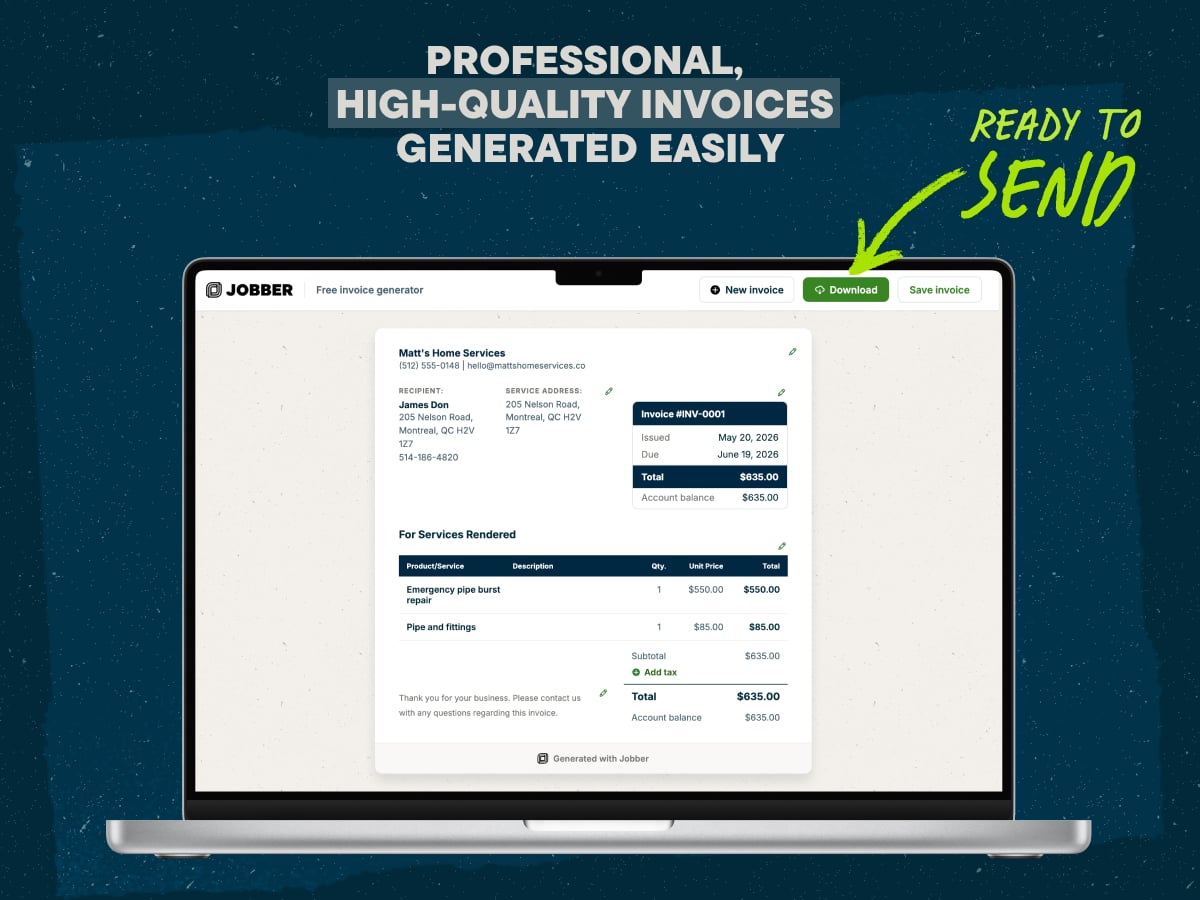
No need to spend your valuable time making invoices from scratch—use Jobber’s free invoice generator to quickly create a custom invoice for any job. Add company and client details, include services and pricing, and wrap up with total costs and payment terms.
Create an invoice fast with our free invoice generator
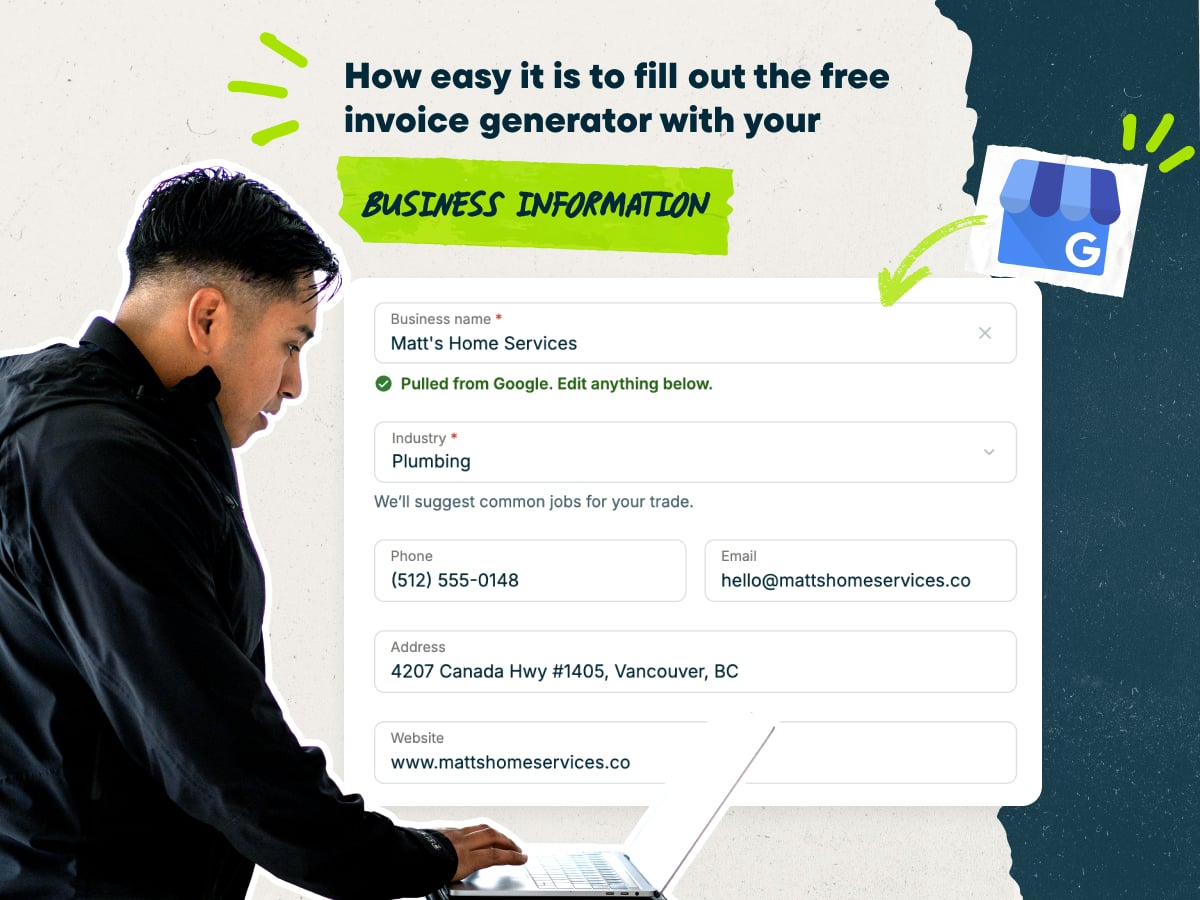
- Enter your business name to auto-fill contact details
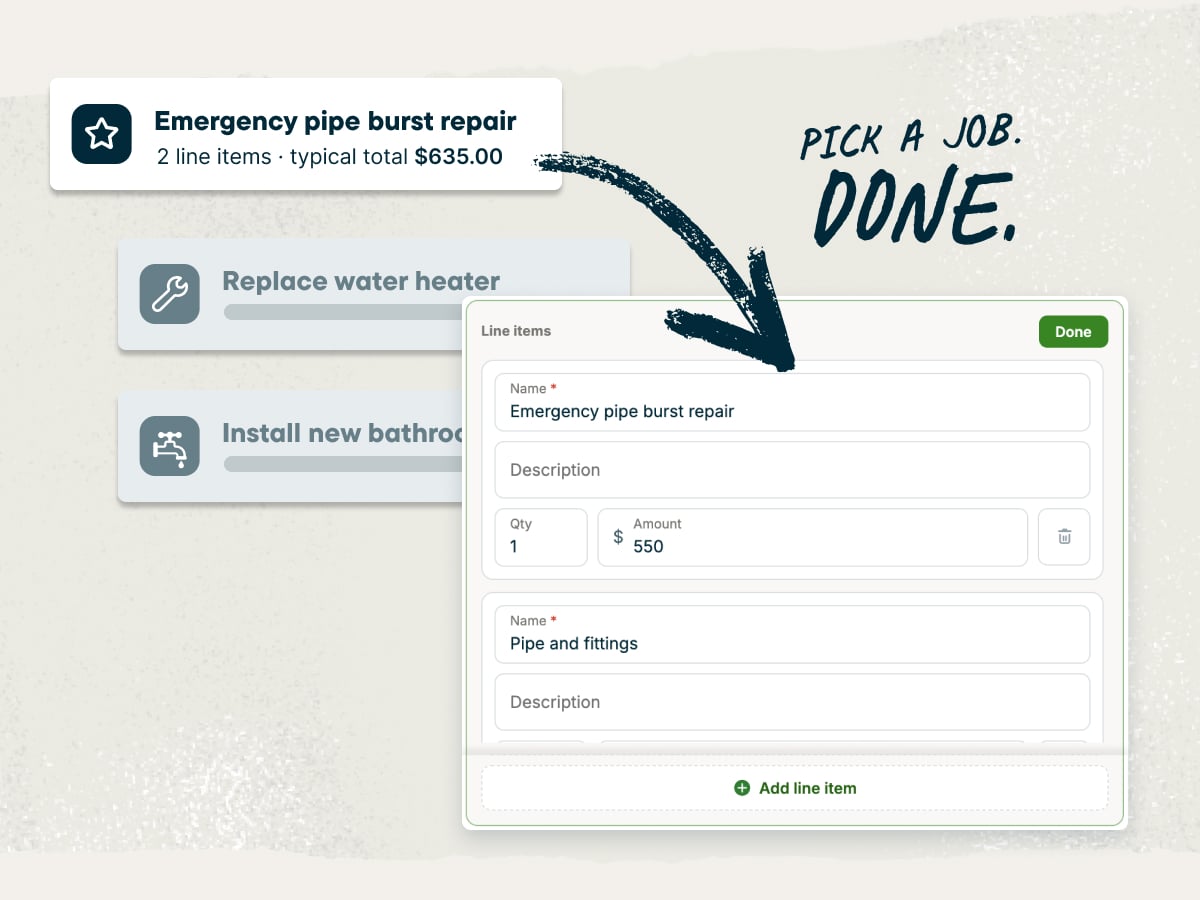
- Customize your own line items or select pre-loaded options with typical pricing
- Easily add client contact information
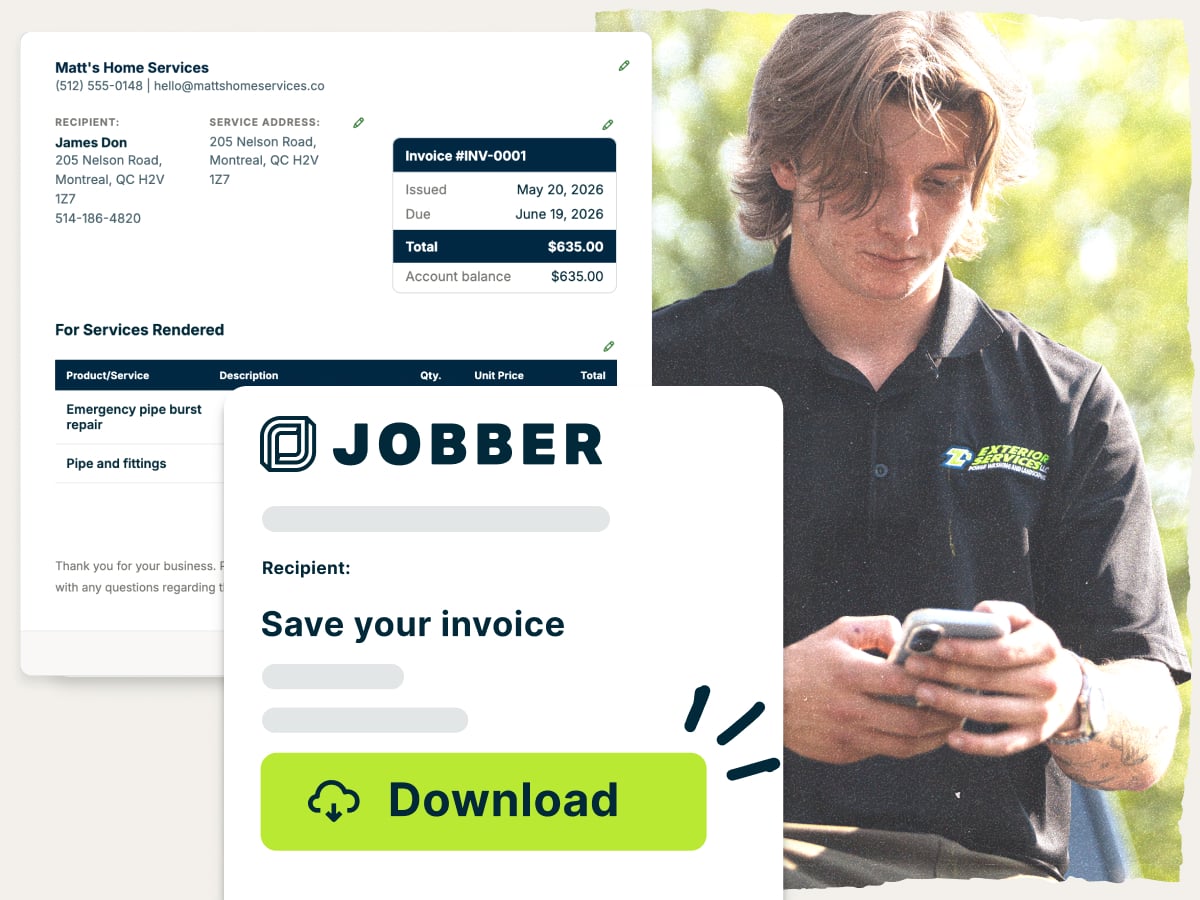
- Download the invoice as a PDF or save it in Jobber
Why use Jobber’s free invoice generator?
- Ready to customize: Add your company information, client details, services, pricing, payment terms, and other job-specific information without building a custom template.
- Set up with the essentials: Start with a complete invoice format that’s ready for you to enter all the information customers need to understand their bill.
- Free to download: Get a professional invoice template without paying for a subscription or premium tool.
An invoice generator built for home service businesses
Not all invoice templates are designed specifically for service businesses. Jobber’s free invoice generator provides a ready-to-use starting point with all the essential details needed to bill your customers accurately.
Looking for an industry-specific invoice?
- Appliance Repair Invoice Template
- Free Auto Detailing Invoice Template
- Carpet Cleaning Invoice Template
- Cleaning Invoice Template
- Commercial Cleaning Invoice Template
- Construction Invoice Template
- Contractor Invoice Template
- Drywall Invoice Template
- Electrical Invoice Template
- Flooring Invoice Template
- Handyman Invoice Template
- HVAC Invoice Template
- Junk Removal Invoice Template
- Landscape Invoice Template
- Lawn Care Invoice Template
- Free Painting Invoice Template
- Pest Control Invoice Template
- Plumbing Invoice Template
- Pool Service Invoice Template
- Pressure Washing Invoice Template
- Remodeling Invoice Template
- Roofing Invoice Template
- Snow Removal Invoice Template
- Tree Service Invoice Template
- Window Cleaning Invoice Template
Over 400,000 home service pros in 50+ industries trust Jobber
“We like to use custom fields. We have a lot of data that we got to enter into these invoices. With Jobber, we were able to customize our invoices exactly how we wanted to.”

How to create an invoice
You can create an invoice using tools like Microsoft Word, Google Docs, Excel, or Google Sheets. For a faster, more consistent process, use our customizable invoice generator, which was designed specifically for service-based work.
Follow these tips to write an invoice that’s clear and professional:
- Use a clean, easy-to-read layout that shows clients their project details, costs, and the amount due.
- Add your business name, logo, and contact details.
- Include client details such as their name, address, and contact information.
- List each service you provided with line items and descriptions for each.
- Include pricing for each task, material, or hourly rate.
- Set payment terms with due dates and accepted payment methods.
- Show a price breakdown with the subtotal, taxes, discounts, and other fees before the final total.
Need to create lots of invoices, fast? Use our free invoice template to create different types of invoices for any job. Or, use invoicing software like Jobber to turn completed jobs into invoices with a single click.
What is the invoice generator best for?
The invoice generator is best for service-based businesses that need to send invoices to clients after completing work, such as cleaning, lawn care, plumbing, electrical, and HVAC. It provides a fast, easy way to tell your clients what work you completed and how much they owe for your services.
Use this invoice generator to:
- Bill for every service. Create a polished invoice without starting from scratch, whether it’s a one-time job, recurring service, repair, installation, or other type of work.
- Describe your work. Use easy-to-read invoice items with unique descriptions to break down total costs by services, quantities, and unit rates.
- Send accurate invoices faster. Create and send an invoice as soon as the work is complete, ensuring you never leave money on the table.
- Set payment expectations. Include the invoice total, payment terms, due date, and other important details so clients know how much to pay and when.
- Build consistent invoices. Add your business name and contact details within the same format across all invoices. That way, all invoices look professional and include all necessary information.
Need to create lots of invoices, fast? Use our free invoice template to create different types of invoices for any job. Or, use invoicing software like Jobber to turn completed jobs into invoices with a single click.
What should be included in an invoice?
When creating an invoice for your home service business, clearly outline the work you completed, associated costs, and how and when to pay. A well-organized invoice helps ensure prompt payment and builds trust with your clients. Here’s what to include in your invoice:
- A unique Invoice number for tracking purposes (e.g., Invoice #1001, #1002, etc.)
- Invoice issue date and the payment due date
- Company information (business name, phone number, email, mailing address, website URL)
- Client information, including name, phone number, service address, and billing address (if it’s different from the service address)
- Detailed line items for each service or product provided (e.g., plumbing, painting, electrical, home repairs), with a name, description, and quantity for each
- Itemized project costs, including labor costs, materials, hourly rates, overhead, and any applied discounts
- Payments already received (e.g., deposit, progress payments) and account balance (if applicable)
- Subtotal before tax, followed by taxes, discounts, and service fees
- Total payment amount due
- Payment terms (e.g., accepted payment methods, due date, late fees, warranty notes)
- Thank-you note telling the client you appreciate their business
READ MORE: What to include on an invoice
For a larger project, the invoice may break costs into project phases. It can show approved change orders, allowances, or progress payments.
To make invoicing easier, use a professional invoice template—or streamline the process even further with Jobber, to build, send, and track professional invoices in just a few clicks.
Free invoice generator vs. Jobber invoicing software
Jobber’s free invoice generator is ideal when you need to quickly create a professional invoice without starting from scratch. Add your business and client information, customize services and pricing, include payment terms, and download the finished invoice as a PDF. No subscription is required.
For ongoing invoicing, Jobber connects billing with the rest of your workflow. Create accurate invoices using existing job details, send them by text or email, track what still needs to be invoiced, and automatically follow up on overdue payments, all in one place.
and payment history organized in one place for easier access.
and pricing already recorded on the completed job.
making it easy for them to review and pay.
it is time to invoice after a visit, at job completion,
or on a recurring schedule.
and send them to customers in a few clicks.
remind customers when an invoice remains unpaid.
so they can pay directly from their digital invoice.
while working from the office, on the road, or at a job site.
FAQ
-
An invoice generator is a tool that helps you quickly create professional-looking invoices. It includes all the essential elements you need to bill clients, like:
• Invoice number, issue date, and due date
• Business name, logo, phone number, email, and mailing address
• Client name, address, and contact details
• Line items for your services and products with itemized costs
• Subtotal, taxes, discounts, and service fees
• Total payment due, including payments already received
• Accepted payment methods, due date, late fees, and warranty notes
• A thank-you to the client for working with your business
Using an invoice template helps save time, reduces errors, and ensures your invoices look professional every time. -
Yes, you can customize our free invoice template with information about your business, client, and project. Include important custom details like:
• Invoice number, issue date, and due date
• Business name, logo, phone number, email, and mailing address
• Client name, address, and contact details
• Line items for your services and products with itemized costs
• Subtotal, taxes, discounts, and service fees
• Total payment due, including payments already received
• Accepted payment methods, due date, late fees, and warranty notes
• A thank-you to the client for working with your business -
You can easily download an invoice from our generator to your computer, phone, or tablet as a PDF. Attach your invoice PDF to a client email or text message, or file it in your records for later reference.
-
Yes, this invoice generator is completely free to use. There is no cost for setting up an account, building an invoice, or downloading your invoice to send to a client.
-
You can create a printable invoice template using tools like Microsoft Word, Google Docs, Excel, or Google Sheets. Or, to save time and reduce errors, use our free pre-built invoice template.
For the fastest and easiest option, try Jobber’s field service invoicing software to create and send professional invoices in just a few clicks, all while keeping your billing organized in one place. -
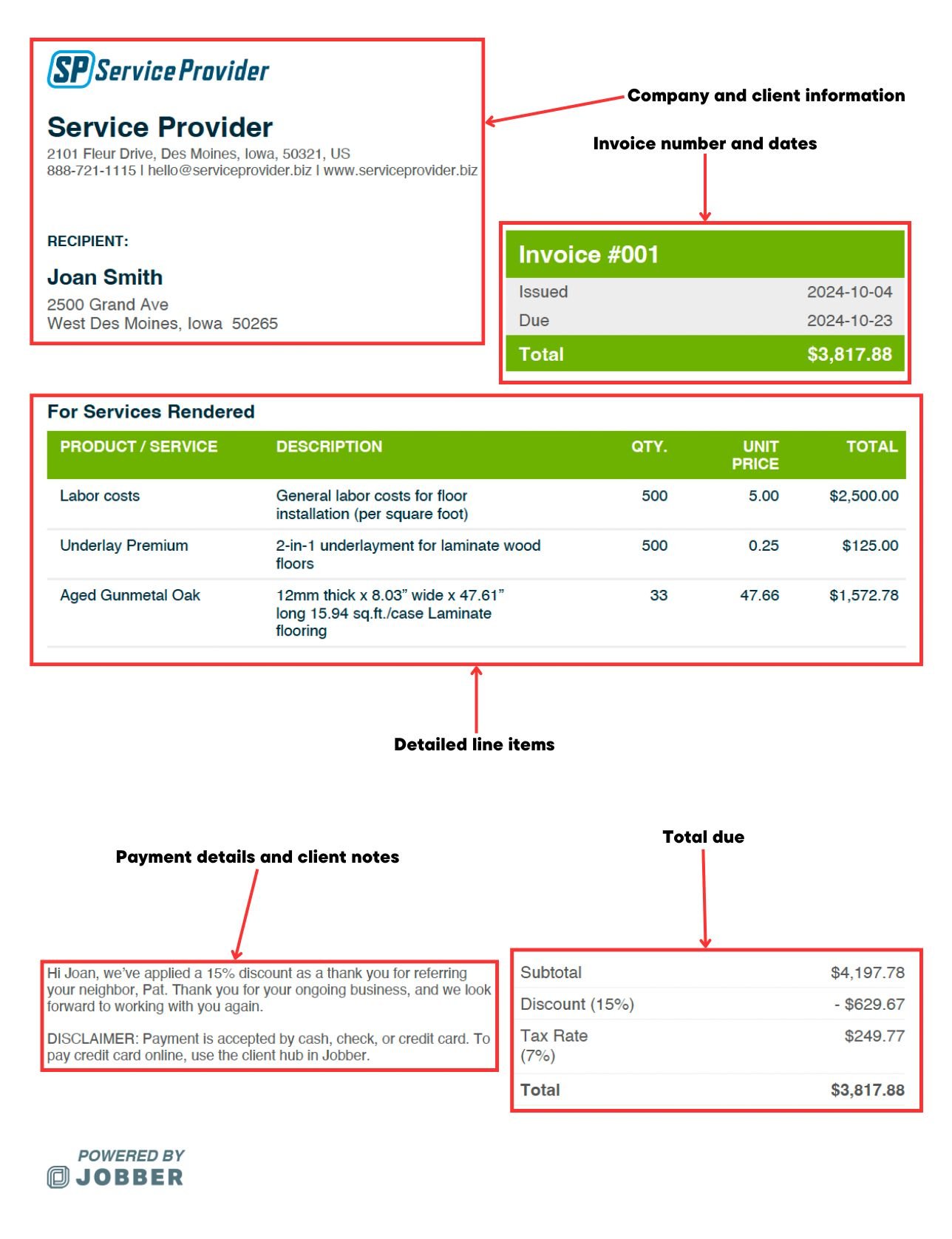
Here’s what an invoice looks like when you use Jobber’s invoice software:
-
You can either fill in the downloadable template to bill for services, or handle everything directly in Jobber. Here’s how to do it:
1. Open your client’s profile and create a new invoice from their job or request.
2. Add each service as a line item with a clear description and price.
3. Apply taxes, discounts, or extra fees. Jobber will calculate the total for you.
4. Set the invoice date and payment terms. Choose how you want to get paid, like card or bank transfer, if those options are enabled.
5. Send the invoice from Jobber by email or text once all the details look correct.
READ MORE: Invoicing best practices to improve cash flow -
Bill and invoice are two terms for the same thing: a document that presents the amount of money a customer owes for a product or service. Service providers tend to call it an invoice, while a client might refer to it as a bill they have to pay. In other words, a service provider sends an invoice to the client, and the client receives a bill.
No matter what you call them, bills and invoices should include a complete breakdown of all project costs and the amount owed, as well as the due date, payment methods, and subtracted deposits. -
There are several convenient options for sending an invoice to clients:
• Email: Attach the invoice as a PDF or include it in the body of the email for quick delivery and easy tracking.
• Text message: Attach the PDF invoice to a text message for clients who prefer mobile communication.
• Print and mail: Print the invoice and mail it to clients who prefer paper records.
• In-person: Hand-deliver a printed invoice to local or on-site clients when the job is done.
Choose the method that best fits your client’s preferences and helps you get paid faster. -
Send an invoice as soon as you can after the job is complete—ideally, less than 48 hours after completing the job. For longer projects, you can send a deposit invoice, milestone invoices, and a final invoice at different stages to maintain cash flow.
Sending invoices on time keeps the project moving and ensures you get paid quickly. Just make sure you and your client agree that the job is done!
READ MORE: When to send an invoice -
Typically, a client should pay their invoice within two weeks of the service date, and no more than net 30. You can test payment deadlines and see what works best for your business’s cash flow.
Some business owners prefer to accept a deposit beforehand and final payment the day of the service. For larger projects with longer timelines, you might also require progress payments at certain milestones. You can offer financing to your customers to get some payment up front and make your high-ticket services more affordable. -
Jobber’s invoicing software makes it easy to create, send, and track invoices online from your desktop or mobile device. Automatically convert job details into customer-friendly invoices, follow up with customers on overdue payments, and get paid faster. Jobber also helps you spend less time on admin work like estimating, scheduling, time tracking, and all the other details that keep your business running smoothly.
Here’s what you can do with invoicing software:
• Create professional invoices that feature your logo and company branding
• Automate invoice follow-ups with customized emails and texts
• Send multiple invoices at once with batch invoicing
• Set reminders to invoice after each visit, or create a custom reminder schedule
• Keep track of which visits have and haven’t been invoiced
• See which invoices are paid, awaiting payment, and past due
• Communicate with clients using email and SMS
• Get paid faster with credit card processing and consumer financing options
• Schedule teams, route work, and track time and expenses
Learn more about how Jobber can help you create invoices and get paid faster.